Documentation of InvoiceRapid

InvoiceRapid calculates VAT for EU countries (Austria, Belgium, Bulgaria, Croatia, Cyprus, Czech Republic, Denmark, Estonia, Finland, France, Germany, Greece, Hungary, Ireland, Italy, Latvia, Lithuania, Luxembourg, Malta, Netherlands, Poland, Portugal, Romania, Slovakia, Slovenia, Spain, and Sweden), VAT for the United Kingdom, and Sales Tax for the United States. It also provides EU VAT, UK VAT, and US Sales Tax CSV reports to help you manage your tax obligations and generate invoices for your customers. InvoiceRapid takes into account VAT and Sales Tax rate exceptions and special cases that differ from standard rates. However, it is your responsibility to register for and collect EU VAT, UK VAT, and US Sales Tax, remit the taxes to the relevant jurisdictions, and complete all required filings.

InvoiceRapid automatically generates invoices for Stripe transactions, but not instantly. It may take up to 3 days to generate an invoice, depending on data verification and external service availability. Typically, invoices are generated within one minute, but in some cases, the process can take up to 3 days.

InvoiceRapid is designed exclusively to calculate and report EU VAT, UK VAT, and US Sales Tax, and to generate invoices for SaaS (Software as a Service) and AI Software businesses. You may use InvoiceRapid only if your products are software delivered and accessed online, rather than installed locally on a user’s device. In this model, the software is hosted and maintained by the provider, and customers access it over the internet, typically via a web browser. InvoiceRapid supports both B2C and B2B transactions, but it is not intended for B2G (business to government) or B2A (business to administration) transactions.

At the moment, InvoiceRapid does not support generating invoices for transactions that occurred before the user subscribed to the annual subscription. InvoiceRapid does not allow editing an invoice after it has been generated. If an invoice was generated by mistake or if a refund is required, you need to issue the refund through Stripe, and InvoiceRapid will automatically create a refund invoice (credit note). If the billing information (such as the address or Tax ID and so on) is incorrect, an email must be sent to support@invoicerapid.com by the owner of the InvoiceRapid account using the email address associated with their registration. The email should include the invoice ID to be modified and all the details that need to be corrected.

Follow the instructions below to set up InvoiceRapid.

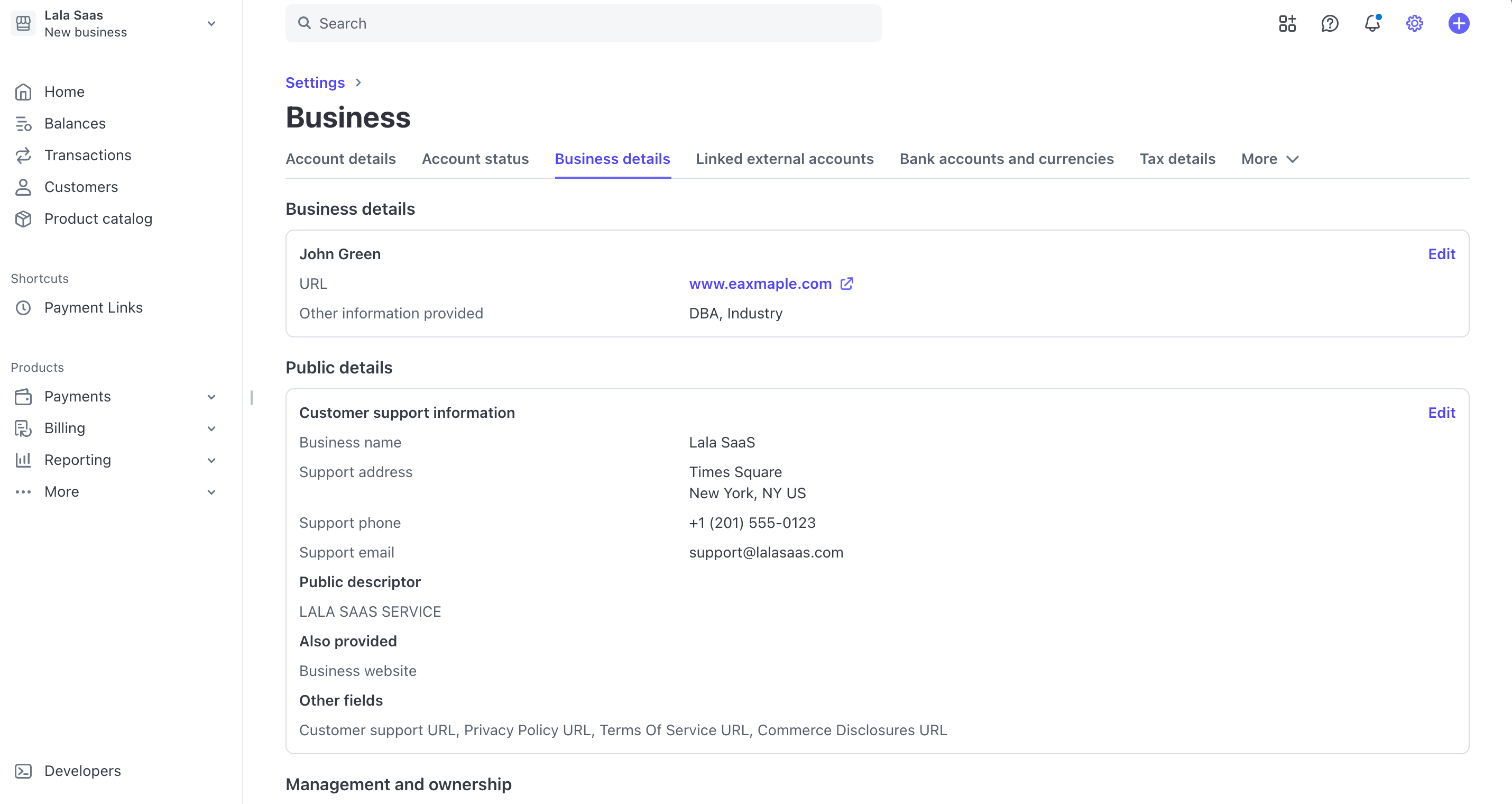
1. Update your address and support email in your Stripe dashboard -> Settings -> Business -> Business details -> Public details to provide InvoiceRapid with all the necessary information to create complete invoices for your customers.

Setup step 15

2. Set up Stripe Checkout Sessions and/or Payment Links and/or Payment Intent API/SDK for your products.

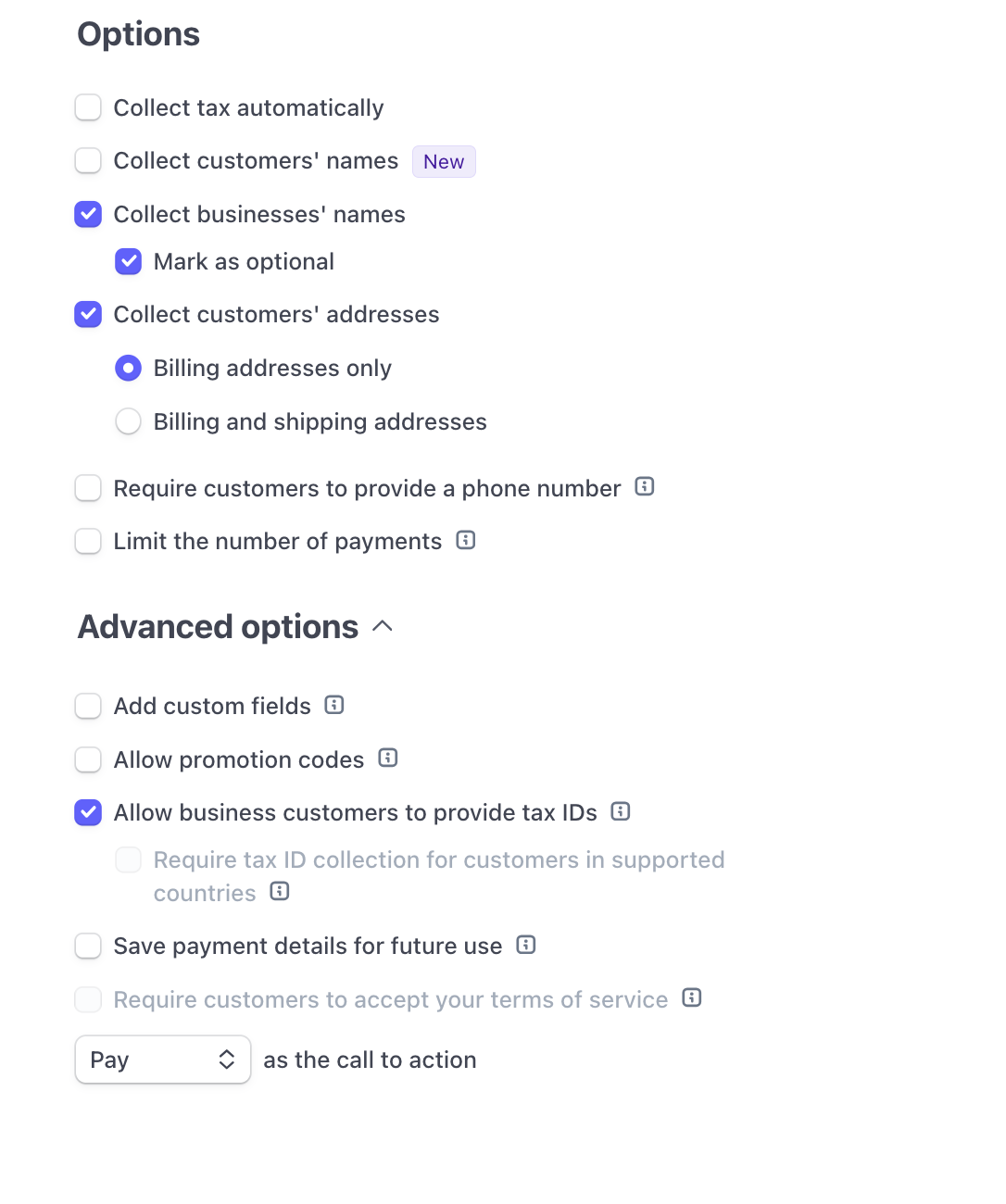
2.1 If you use Stripe Payment Links you have to select at least:

  • Collect businesses' names - Mark as optional
  • Collect customers' addresses
  • Allow business customers to provide tax IDs
Setup step 16

If you want you can also select 'collect tax automatically' in order to Activate Stripe Tax (Stripe charges a 0.5% fee for each transaction). In any case Invoice Rapid automatically compute the VAT Tax for your European customers.

2.2 If you create Stripe Checkout Session through SDK or Api you have to set up at least:

  • name_collection = {"business": {"enabled": true}}
  • billing_address_collection= 'required'
  • tax_id_collection = {"enabled": true }

If you want you can also select 'automatic_tax = {"enabled": true }' in order to Activate Stripe Tax (Stripe charges a 0.5% fee for each transaction). In any case Invoice Rapid automatically compute the VAT Tax for your European customers.

At this link you can find the complete documentation to create a Stripe Checkout Session https://docs.stripe.com/api/checkout/sessions/create.

2.3 If you create Stripe Payment Intents directly through API or SDK you have to provide a specific object to the key-value pairs metadata when create the Payment Intent through API or SDK. See https://docs.stripe.com/api/payment_intents/create to know all details about how create Payment Intent through API or SDK. When you create the Payment Intent directly with API or SDK, you must include a metadata key-value pairs with the following the structure and the parameters:

Attributes for metadata

invoice_rapid_data object Required

customer_email string Required

The email of your buyer/customer


customer_is_business boolean Required

If the customer is a business or not.
true The customer is a business
false The customer is not a business


customer_country enum Required

Two-letter ISO 3166-1 alpha-2 country code of your buyer/customer, in uppercase. See ISO 3166-1 alpha-2


tax_id_customer nullable string

Your buyer’s TAX ID is required only when your buyer is a registered business entity. It must include only the TAX ID number without the country code (e.g., 12345678912)


tax_amount nullable integer Required

If Stripe Tax is not active, this field must be null. If Stripe Tax is active, this field must be an integer representing the tax amount returned by Stripe Tax. If the tax returned by Stripe Tax is zero, the value should be 0 as an integer. The amount should be expressed in the currency’s minor unit, so pay attention to the difference between zero-decimal and two-decimal currencies. To learn more about these differences and see which currencies fall into each category visit https://docs.stripe.com/currencies#two-decimal


product_id string Required

The unique identifier for the product sold in the transaction


customer_name string Required

Full name of your buyer or customer. If the customer is a business, enter the business name.


customer_address object Required

Must be an object with this structure:

{
  "city": "Barcelona",
  "country": "ES",
  "line1": "Carrer de Mallorca 401",
  "line2": "333",
  "postal_code": "08013",
  "state": "B"
}

The keys of customer_address must be these:

  • city string Required

    The city of your buyer/customer


  • country string Required

    Two-letter ISO 3166-1 alpha-2 country code of your buyer/customer, in uppercase. See ISO 3166-1 alpha-2


  • line1 string Required

    The Street address only


  • line2 string

    The building number only


  • postal_code string

    The postal code of the address. This field is mandatory for all European Union countries except Ireland (IE). The filed is mandatory also for all states of United States and for United Kingdom.


  • state string

    The state within the country. This field is mandatory when the country is Spain or the country is United States.
    For Spain the state must be one of this: VI, AB, A, AL, O, AV, BA, B, BU, CC, CA, S, CS, CE, CR, CO, CU, GI, GR, GU, SS, H, HU, PM, J, C, LO, GC, LE, L, LU, M, MA, ML, MU, NA, OR, P, PO, SA, TF, SG, SE, SO, T, TE, TO, V, VA, BI, ZA, Z
    For United States the state must be one of this: AL, AK, AZ, AR, CA, CO, CT, DE, DC, FL, GA, HI, ID, IL, IN, IA, KS, KY, LA, ME, MD, MA, MI, MN, MS, MO, MT, NE, NV, NH, NJ, NM, NY, NC, ND, OH, OK, OR, PA, RI, SC, SD, TN, TX, UT, VT, VA, WA, WV, WI, WY


{
  "metadata": {
    "invoice_rapid_data": {
      "customer_email": "jack.wild@gmail.com",
      "customer_is_business": true,
      "customer_country": "ES",
      "tax_id_customer": "12345678912",
      "tax_amount": 30,
      "product_id": "prod_NWjs8kKbJWmuuc",
      "customer_name": "Jack Wild Limited",
      "customer_address": {
        "city": "Barcelona",
        "country": "ES",
        "line1": "Carrer de Mallorca 401",
        "line2": "333",
        "postal_code": "08013",
        "state": "B"
      }
    }
  }
}
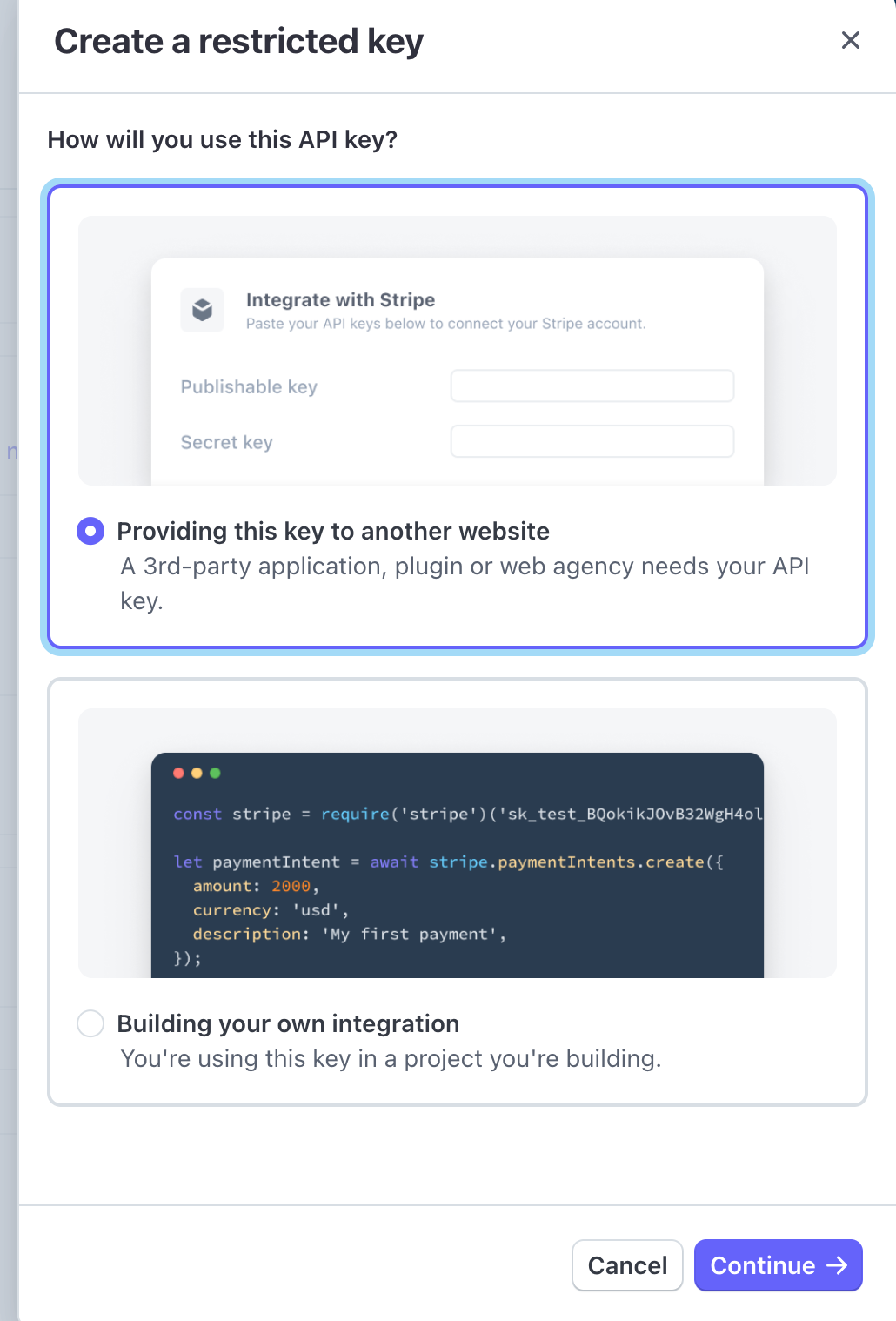
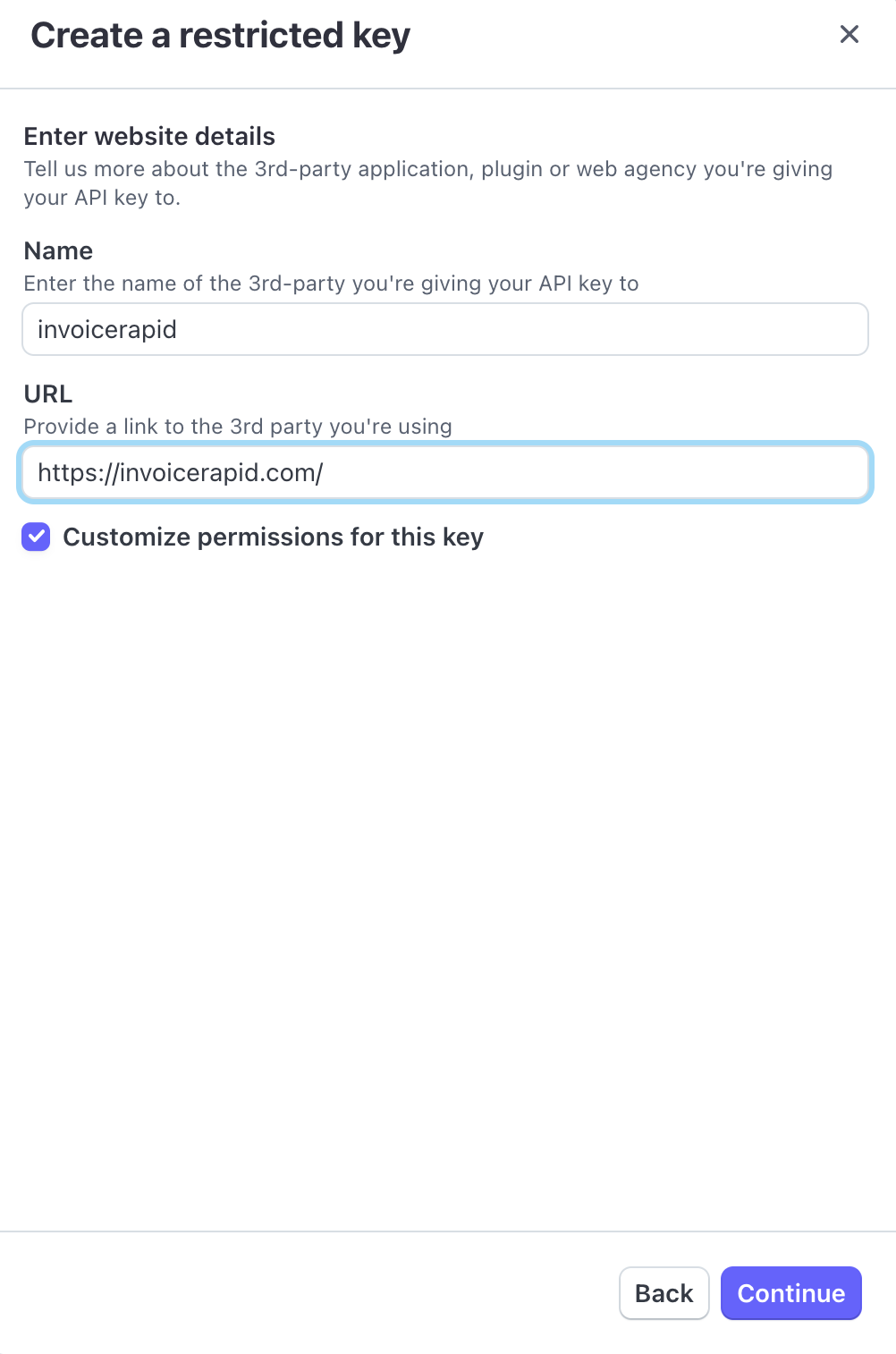

3. Create a Restricted Stripe API Key in the Stripe dashboard.

Setup step 1
Setup step 2

You need to set all these resource types to READ:

  • Core
  • Checkout
  • Billing
  • Connect
  • Orders
  • Issuing
  • Payment Links
  • Tax

Setup step 3
Setup step 4
Setup step 5
Setup step 6
Setup step 7
Setup step 8
Setup step 10
Setup step 11

You need to set all these resource types to WRITE:

  • All webhook

Setup step 17

Copy the Restricted Stripe Api Key created into your InvoiceRapid dashboard.


If you need to resynchronize your Stripe account with InvoiceRapid, you must re-enter your restricted Stripe API key in your InvoiceRapid dashboard. If you change your restricted Stripe API key or switch to another Stripe account, you must also enter the new restricted Stripe API key in your InvoiceRapid dashboard.


Restricted API keys in test mode are not accepted, and an error is returned if you try to use one. You must use a Restricted API key in live mode.

4. Add an Event destination (Webhook) in Stripe dashboard

You have to select these events:

  • charge.dispute.funds_reinstated
  • charge.dispute.funds_withdrawn
  • checkout.session.completed
  • invoice.paid
  • payment_intent.succeeded
  • refund.created
  • refund.failed
  • account.updated

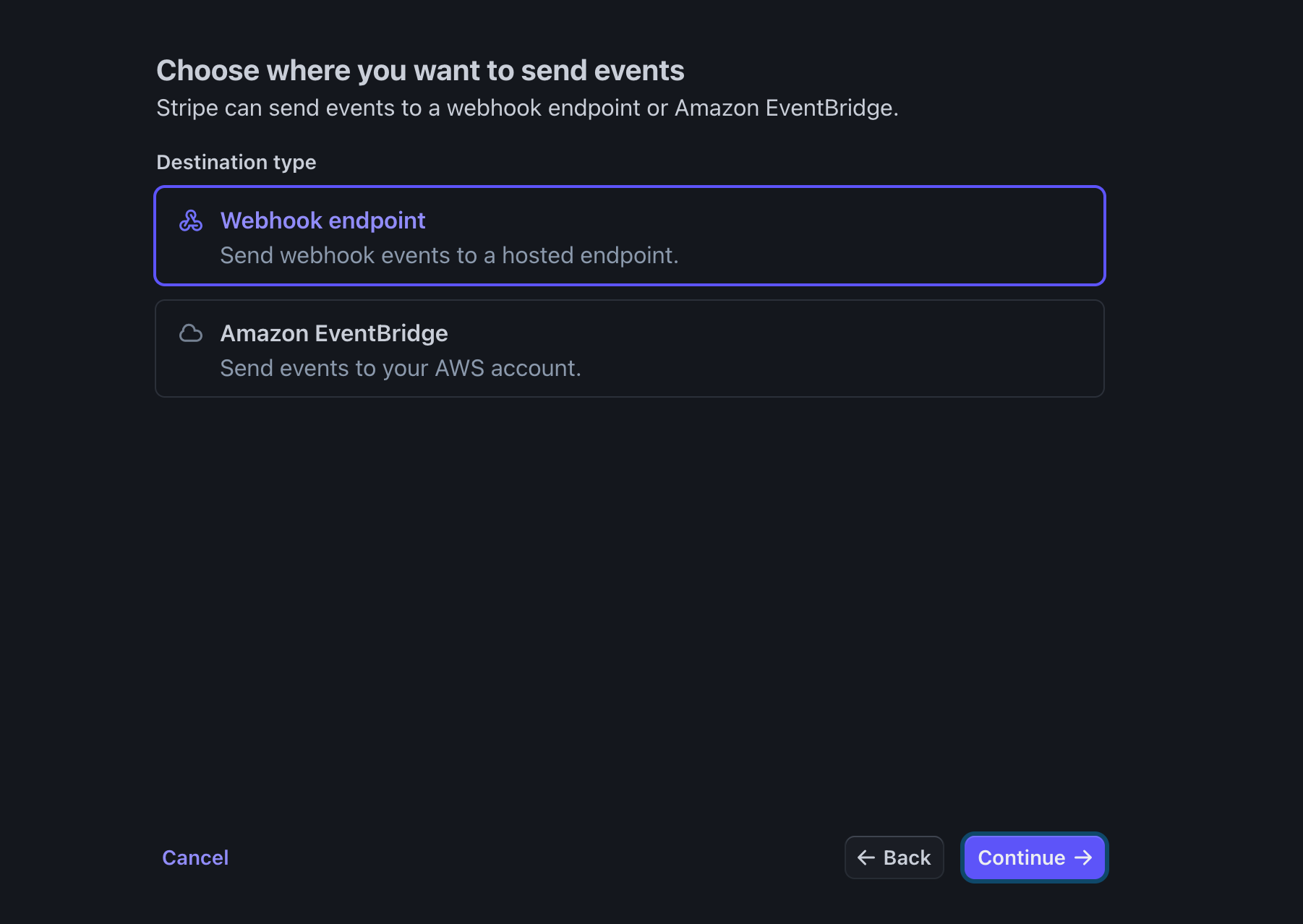
You have to choose Webhook endpoint.

Setup step 12

You have to copy your personalized webhook endpoint from your InvoiceRapid dashboard into your Stripe dashboard.

Setup step 13

You have to copy your Stripe Webhook Signing secret from your Stripe dashboard into your InvoiceRapid dashboard.

Setup step 14

Webhook events sent in test mode are not accepted or processed. You must use webhook events in live mode.

5. You need to provide your Tax ID for your country (state in case of United States) of residence in the InvoiceRapid dashboard.

6. If you or your company is based in the EU, in the InvoiceRapid dashboard you must choose whether you fall under the SME Domestic VAT exemption, the SME Cross-Border VAT exemption, both, or neither.
For all information regarding the SME Domestic VAT exemption, please visit: https://sme-vat-rules.ec.europa.eu/sme-scheme/domestic-sme-scheme_en.
For all information regarding the SME Cross-Border VAT exemption, please visit: https://sme-vat-rules.ec.europa.eu/sme-scheme/cross-border-sme-scheme_en.

7. In the InvoiceRapid dashboard, you must choose whether VAT calculations for EU and UK transactions and Sales Tax calculations for US transactions are handled by InvoiceRapid or by Stripe when Stripe Tax is enabled on your Stripe account. If you choose to use InvoiceRapid for VAT and Sales Tax calculations, the auto-generated invoices for your customers will show the VAT and Sales Tax calculated by InvoiceRapid. The CSV VAT and Sales Tax reports will also show the VAT and Sales Tax calculated by InvoiceRapid. If instead you choose to use Stripe Tax for VAT and Sales Tax calculations, the auto-generated invoices for your customers will show the VAT and Sales Tax calculated by Stripe Tax. The CSV VAT and Sales Tax reports will also show the VAT and Sales Tax calculated by Stripe Tax.

8. In the InvoiceRapid dashboard, under the VAT, Sales Tax Threshold & Tax Setup menu, you will find a list of all EU countries, the UK, and all US states that tax SaaS, Canned Software, and AI Software businesses delivered and accessed online, rather than installed locally on a user’s device. The list shows VAT and Sales Tax thresholds along with your actual sales retrieved from Stripe for each country, each US state, and the overall EU area.
To collect VAT on EU you must register for VAT in each EU country where you sell, or use the OSS (One Stop Shop) system, which allows you to collect VAT for all EU countries with a single registration. You must also register for VAT in the UK and for Sales Tax in each US state that taxes SaaS, Canned Software, and AI Software businesses delivered and accessed online.
If your company is based in EU, you are required to register for VAT in your home country as well.
If your company is based in UK, you are required to register for VAT in UK as well.
If your company is based in a US state that taxes SaaS, Canned software, and AI software businesses delivered and accessed online, you are also required to register for Sales Tax in that state.
For VAT registration in each EU country, you should refer to the national legislation and the website of the respective country’s government, which typically includes a section on VAT registration. You can also contact a tax or fiscal representative in the specific country you are interested in.
Below is a list of EU countries with links to their VAT websites:
If you decide to use the OSS (One Stop Shop) system, visit the official OSS website https://vat-one-stop-shop.ec.europa.eu/index_en for information.
For VAT registration in UK country, visit the official UK VAT website https://www.gov.uk/browse/tax/vat for information.
For Sales Tax registration in each US state, you should refer to the state legislation and the website of the respective state’s government, which typically includes a section on Sales Tax registration. You can also contact a tax or fiscal representative in the specific US state you are interested in.
Below there is a list of US states that tax SaaS, Canned Software, and AI Software businesses delivered and accessed online:
After completing your VAT and Sales Tax registrations, you must enter the OSS VAT ID, VAT ID, or Sales Tax Permit ID codes you receive (for each country, for OSS, or for each US state) in the VAT, Sales Tax Threshold & Tax Setup section of the InvoiceRapid dashboard.
Without entering the OSS VAT ID, VAT ID, or Sales Tax Permit ID registration code for a jurisdiction, InvoiceRapid will not calculate VAT or Sales Tax for transactions in that jurisdiction and will not generate a VAT or Sales Tax report.
You must enter the correct OSS VAT ID, VAT ID, or Sales Tax Permit ID only if you are properly registered for VAT or Sales Tax in that jurisdiction. It is illegal to collect VAT or Sales Tax if you are not authorized to do so through registration in the jurisdiction where the tax is collected. Once you have registered for VAT or Sales Tax in a jurisdiction, you must also file the corresponding VAT or Sales Tax return even if the amount due is zero.

InvoiceRapid calculates VAT for EU countries (Austria, Belgium, Bulgaria, Croatia, Cyprus, Czech Republic, Denmark, Estonia, Finland, France, Germany, Greece, Hungary, Ireland, Italy, Latvia, Lithuania, Luxembourg, Malta, Netherlands, Poland, Portugal, Romania, Slovakia, Slovenia, Spain, and Sweden), VAT for the United Kingdom, and Sales Tax for the United States. It also provides EU VAT, UK VAT, and US Sales Tax CSV reports to help you manage your tax obligations and generate invoices for your customers. InvoiceRapid takes into account VAT and Sales Tax rate exceptions and special cases that differ from standard rates. However, it is your responsibility to register for and collect EU VAT, UK VAT, and US Sales Tax, remit the taxes to the relevant jurisdictions, and complete all required filings.

InvoiceRapid is designed exclusively to calculate and report EU VAT, UK VAT, and US Sales Tax, and to generate invoices for SaaS (Software as a Service) and AI Software businesses. You may use InvoiceRapid only if your products are software delivered and accessed online, rather than installed locally on a user’s device. In this model, the software is hosted and maintained by the provider, and customers access it over the internet, typically via a web browser. InvoiceRapid supports both B2C and B2B transactions, but it is not intended for B2G (business to government) or B2A (business to administration) transactions.

9. In InvoiceRapid dashboard menu under Your Shareable Invoices Link you will find a link to share with your customers so they can view their invoices. You can copy and paste this link wherever you like (e.g. in the Billing section of your SaaS or AI Software, in the confirmation email after a payment or in the popup shown after a successful Stripe payment).

10. In the InvoiceRapid dashboard, under the VAT Report menu, you can download a CSV report for EU VAT, UK VAT, or US Sales Tax based on all transactions since connecting Stripe to InvoiceRapid, or download an aggregated CSV report for EU VAT, UK VAT, or US Sales Tax.